
How to Check Your Phone’s Battery Health Leave a comment
Your smartphone battery plays a major role in how reliably your device performs throughout the day. Over time, batteries naturally lose their ability to hold a charge, resulting in shorter battery life, unexpected shutdowns, overheating, or slower performance. Knowing how to check your phone’s battery health can help you identify battery problems early and decide when replacement may be necessary.
Whether you use an iPhone, Samsung Galaxy, Tecno, Infinix, Xiaomi, or another Android device, understanding your battery’s condition is an important part of smartphone maintenance.
What Is Battery Health?
Battery health refers to the battery’s remaining capacity compared with when it was new. A brand-new battery typically has 100% of its original capacity, while an older battery may only retain 80% or less.
For example, if your phone originally had a 5,000mAh battery but now effectively holds around 4,000mAh, its usable capacity has reduced over time.
Battery health can affect:
- How long your phone lasts between charges
- Charging speed and efficiency
- Device performance
- Unexpected shutdowns
- Battery heating
- Overall smartphone lifespan
How to Check Battery Health on an iPhone
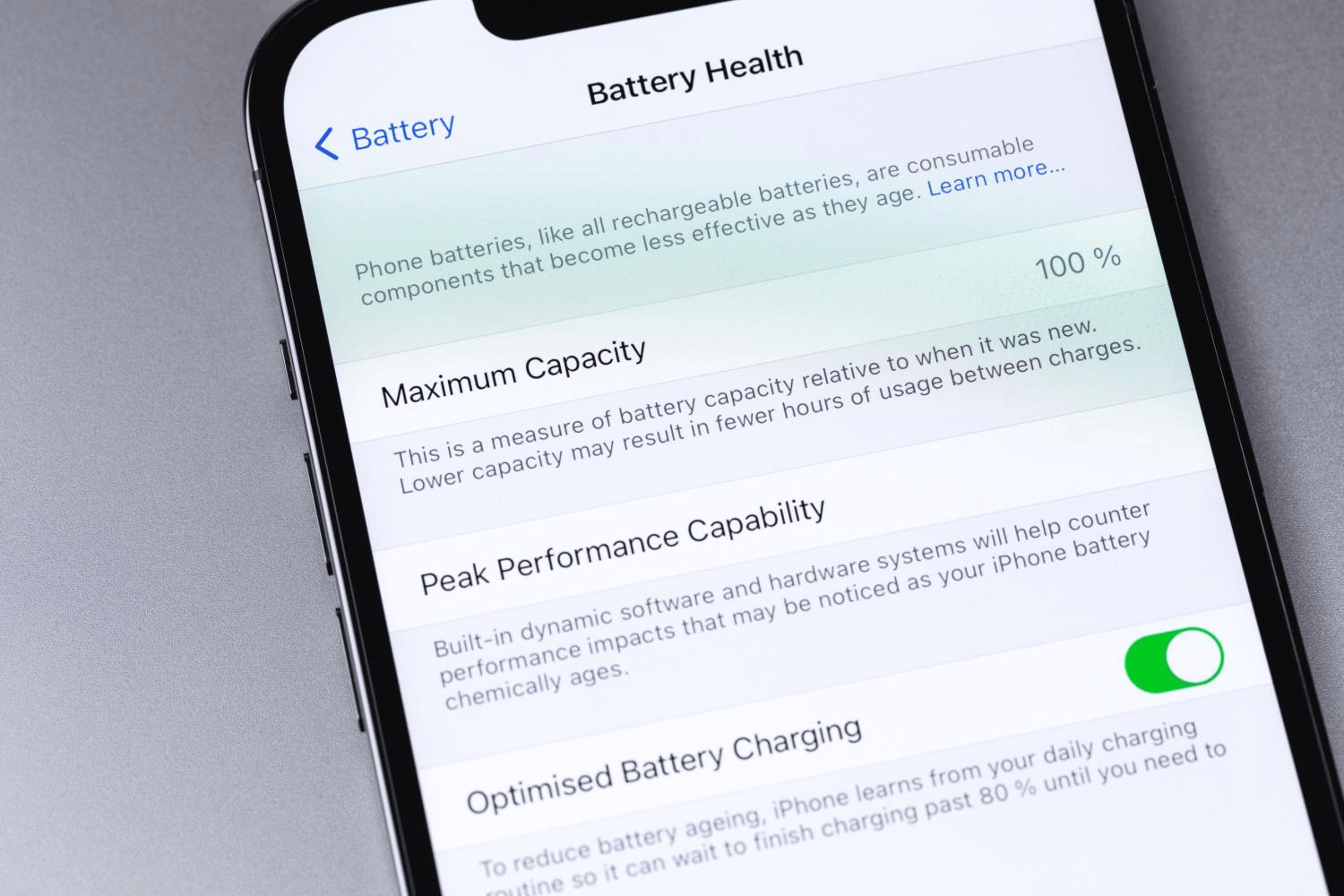
Apple provides a built-in battery health feature on most modern iPhones.
Steps:
- Open Settings.
- Scroll down and tap Battery.
- Select Battery Health & Charging.
- Check the Maximum Capacity percentage.
The percentage shows how much battery capacity remains compared with when the battery was new.
What Do the Results Mean?
- 90%–100%: Excellent condition
- 80%–89%: Normal aging but still usable
- Below 80%: Consider battery replacement
- Service warning: The battery may require professional attention
Apple may also display information about whether the battery supports normal peak performance.
How to Check Battery Health on Samsung Galaxy Phones
Samsung devices may not always display a simple battery-health percentage, but you can use Samsung’s diagnostic tools.
Using Samsung Members:
- Open the Samsung Members app.
- Tap Support or Get Help.
- Select Phone Diagnostics.
- Choose Battery Status.
- Review the battery condition shown.
Depending on the device and software version, the result may appear as Normal, Weak, or Bad.
You can also check battery usage by going to:
Settings → Battery → Battery Usage
This helps identify apps consuming excessive power.
How to Check Battery Health on Other Android Phones
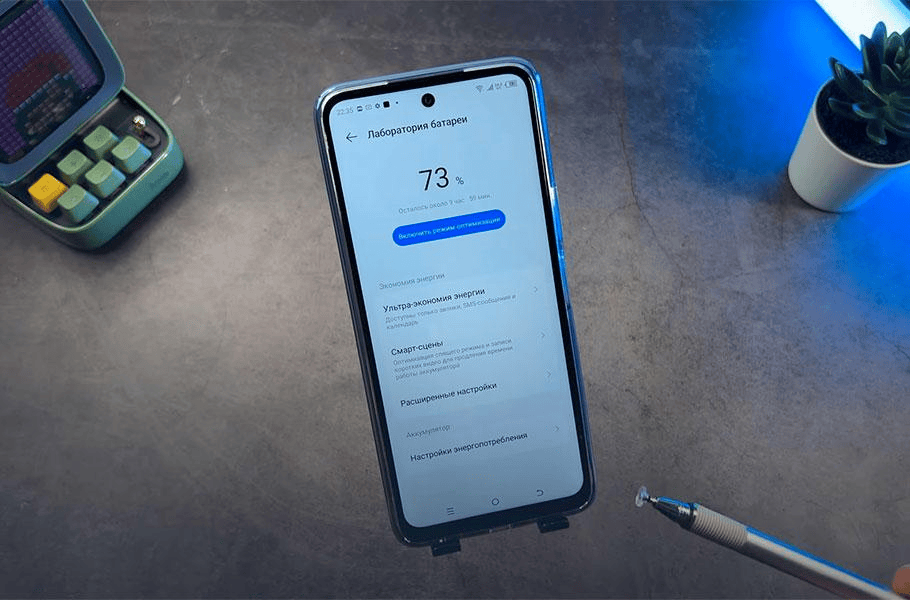
Android battery-health features vary by manufacturer. Some devices provide detailed battery information, while others only show battery usage and charging statistics.
Try the following:
- Open Settings.
- Search for Battery Health, Battery Information, or Battery Diagnostics.
- Check the available battery condition details.
- Review battery usage to identify unusually power-hungry apps.
On some Android phones, entering certain diagnostic codes in the Phone app may display battery information, but these codes differ by brand and model and may not work on every device.
Use Battery Monitoring Apps Carefully
Third-party apps can estimate battery capacity, charging cycles, temperature, and charging speed. However, they may require several charging sessions before providing accurate results.
When using battery-monitoring apps:
- Download only from trusted app stores.
- Avoid apps requesting unnecessary permissions.
- Do not trust exaggerated claims about “repairing” battery health.
- Remember that software estimates may not be as accurate as manufacturer diagnostics.
Signs Your Phone Battery May Be Deteriorating
Even if your phone does not show a battery-health percentage, certain warning signs may indicate battery degradation:
- Battery percentage drops unusually quickly
- Phone shuts down with charge remaining
- Device becomes hot during normal use
- Battery takes longer to charge
- Phone struggles to last through the day
- Battery percentage jumps unexpectedly
- Phone becomes swollen or physically distorted
A swollen battery is a serious safety concern. Stop using the device and seek professional repair immediately.
How to Extend Your Phone’s Battery Lifespan
Checking battery health is useful, but proper charging habits can help slow battery degradation.
Follow These Tips:
- Avoid exposing your phone to extreme heat.
- Use original or certified chargers and cables.
- Avoid repeatedly allowing the battery to reach 0%.
- Keep your phone updated.
- Reduce unnecessary background activity.
- Avoid intensive gaming while charging if the device becomes excessively hot.
- Enable optimized or adaptive charging where available.
- Do not leave a damaged or swollen battery unattended.
Modern lithium-ion batteries naturally degrade, but good habits can help maintain their performance for longer.
When Should You Replace Your Phone Battery?
You may need a replacement when:
- Battery health falls significantly below its original capacity
- The phone cannot last through normal daily use
- The device frequently shuts down unexpectedly
- The battery becomes swollen
- Charging becomes unreliable
- Repair costs are lower than replacing the entire phone
For safety and reliability, battery replacement should be handled by a qualified technician using a suitable replacement battery.
Final Thoughts
Learning how to check your phone’s battery health helps you understand your device’s condition and avoid unexpected battery problems. iPhone users can easily check Maximum Capacity through Settings, while Android users may need manufacturer diagnostic tools or battery-monitoring features.
Regularly monitoring battery performance, avoiding excessive heat, and practicing good charging habits can help extend your phone’s useful life and improve everyday reliability.
