8 ways to control your Android from a PC Leave a comment
Android apps to help you become the master of PC remote control.
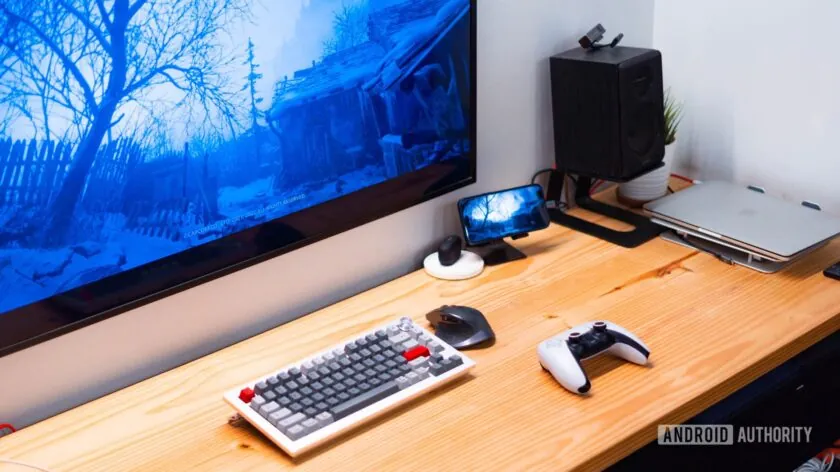
Best Ways to Control Your Android Phone From a PC
There are plenty of reasons why you might want to operate your Android smartphone directly from a computer. Perhaps you want to enjoy mobile games on a larger display, respond to messages using your PC keyboard, transfer files more conveniently, or manage your phone without constantly switching between devices.
The good news is that mirroring and controlling an Android phone from a PC is relatively simple with the right software. You also don’t necessarily need to root your device or install Android applications on Windows.
Here are some of the best tools you can use to connect and control an Android phone from your computer.
Ways to Control Android From a PC
- Microsoft Phone Link
- Pushbullet
- AirDroid
- Vysor
- Scrcpy
- DeskDock
- Samsung Flow
- TeamViewer QuickSupport
Most of these Android remote-control solutions work without requiring root access, making them accessible to regular Android users. However, features and compatibility can differ between applications.
For example, Samsung Flow is primarily designed for Samsung Galaxy smartphones and tablets, while some screen-mirroring features may only work with selected Android devices.
Android Remote-Control Apps Compared
| Tool | Platforms | Main Features | Pricing | Key Limitation |
|---|---|---|---|---|
| Microsoft Phone Link | Windows | Notifications, file sharing, calls and screen mirroring | Free | Screen mirroring is restricted to compatible devices |
| Pushbullet | Windows, macOS, Web | Notifications and file sharing | Free / $5 per month for Pro | Some features require a Pro subscription |
| AirDroid | Windows, macOS, Web | File sharing, camera access, screen sharing and messaging | Free / $4 per month paid plan | Paid plan supports up to 3 Android devices |
| Vysor | Windows, macOS, Linux, Web | Android screen mirroring | Free / $2.50 per month for Pro | Some advanced functions require Pro |
| Scrcpy | Windows, macOS, Linux | Screen mirroring and clipboard sharing | Free and open source | May require more technical setup |
| DeskDock | Windows, Linux, macOS | Mouse control and clipboard sharing | Free / $5.50 Pro | Setup can be more involved |
| Samsung Flow | Windows | Remote unlocking, file sharing and notification synchronization | Free | Designed for Samsung Galaxy devices |
| TeamViewer QuickSupport | Windows, macOS | Remote control and file sharing | Free for personal use / Paid business plans | Features vary depending on device |
Which Android Control Tool Should You Use?
Microsoft Phone Link
For Windows users, Microsoft Phone Link is one of the easiest options. It allows you to access notifications, messages, calls and files, while compatible smartphones can also provide screen-mirroring functionality.
Pushbullet
Pushbullet is useful if your main goal is keeping notifications and files synchronized between your phone and computer. It supports Windows, macOS and web browsers.
AirDroid
If you want a wider range of remote-management features, AirDroid is worth considering. Depending on your setup and subscription, you can transfer files, access your phone’s camera, mirror the screen and manage messages.
Vysor
Vysor focuses heavily on screen mirroring. It’s a good option if you want to see and interact with your Android display from your computer.
Scrcpy
For users looking for a free and open-source solution, Scrcpy is one of the most attractive choices. It can mirror an Android screen to Windows, macOS or Linux and supports features such as clipboard synchronization.
DeskDock
DeskDock allows you to use your computer’s mouse and keyboard with your Android device. It’s particularly useful if you want to control your phone while keeping it connected to your computer.
Samsung Flow
Samsung Galaxy users can take advantage of Samsung Flow, which provides features such as file transfers, notification synchronization and device connectivity between compatible Samsung phones and Windows PCs.
TeamViewer QuickSupport
TeamViewer QuickSupport is particularly useful for remote technical assistance. It can allow another person to help troubleshoot or manage a supported Android device remotely, depending on the device and permissions available.
Final Thoughts
Whether you want to play games on a larger screen, respond to messages from your computer, transfer files or provide remote technical support, there are several ways to control an Android phone from a PC.
For most users, Microsoft Phone Link is a convenient starting point, while Scrcpy is an excellent free option for users who don’t mind a more technical setup. Samsung owners may prefer Samsung Flow, while AirDroid and TeamViewer are better suited to users who need broader remote-management capabilities.
Security tip: Only install Android remote-control software from trusted sources. Because these applications can potentially provide significant access to your device, avoid unofficial APKs, cracked versions and unknown download websites.
Microsoft Phone Link
Price: Free
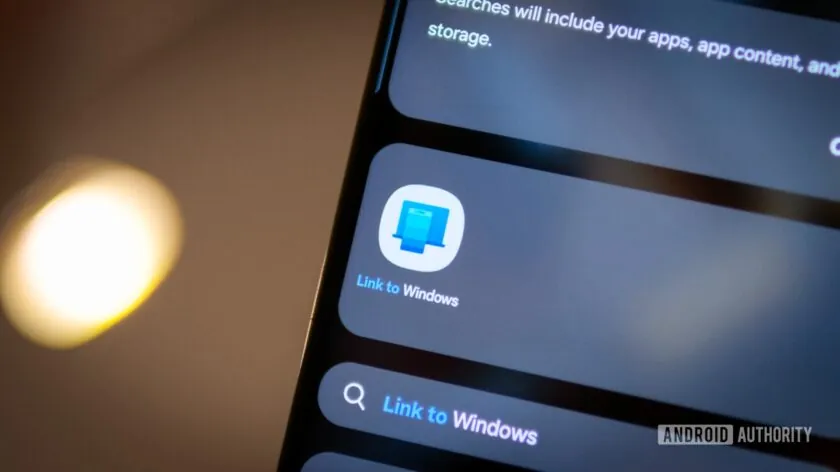
Microsoft Phone Link: An Easy Way to Control Your Android Phone From a PC
If you want a simple way to connect your Android smartphone to a computer, Microsoft Phone Link is one of the most convenient options available. The application is built into modern versions of Windows 10 and Windows 11, so there’s generally no need to install additional software on your PC.
Some newer smartphones from manufacturers such as Samsung, OnePlus, and OPPO also come with Phone Link integration, making the setup even easier.
Although Phone Link doesn’t offer as many advanced features as some dedicated remote-control applications, it works well for everyday tasks. You can use your computer to read and reply to text messages, view smartphone notifications, and answer phone calls without constantly reaching for your handset.
For calling functionality, your PC typically needs to establish a Bluetooth connection with your smartphone.
Another useful feature is the ability to mirror your phone’s screen on compatible devices. This allows you to view and, in some cases, interact with Android applications directly from your computer.
What Can Phone Link Do?
With Phone Link, you can:
- View and respond to Android notifications
- Send and receive text messages
- Make and answer calls
- Access selected phone files and photos
- Mirror your smartphone screen on supported devices
- Interact with compatible Android applications
What Are the Limitations?
Phone Link isn’t equally capable on every Android smartphone. Certain features depend on the manufacturer and device, and some functionality is limited or unavailable on Google Pixel phones.
Another limitation is platform support: Phone Link is primarily designed for Windows PCs, whereas alternatives such as AirDroid, Scrcpy, and Vysor can also work with macOS or Linux.
Overall, if you’re using a Windows computer and mainly want to manage notifications, messages and calls from your desktop, Phone Link is one of the easiest solutions to start with.
Pushbullet
Price: Free or $4.99 per month

Pushbullet: A Simple Way to Stay Connected Across Devices
Unlike Microsoft Phone Link, Pushbullet doesn’t provide full control over your Android smartphone from a PC. Instead, it focuses on making communication and notifications more accessible by bringing important phone activities directly to your computer.
With Pushbullet, you can receive and respond to notifications, send messages, and transfer files between your Android device and computer. It also supports optional encryption, which can provide an additional layer of privacy when transferring sensitive information.
One particularly useful feature is Universal Copy and Paste, which allows you to copy content on one device and paste it on another, making it easier to work with messages, links, and other information.
Pushbullet also supports multiple devices, allowing you to manage and communicate across several connected devices from one account.
Pushbullet Pricing
The basic version of Pushbullet is free, but it comes with limitations. Free users are restricted to 100 messages per month.
For users who need more functionality, Pushbullet Pro costs $4.99 per month or $39.99 per year.
For Nigerian users, that’s roughly ₦7,500 per month or ₦60,000 per year, assuming an exchange rate of about ₦1,500 to $1. Actual charges may vary depending on exchange rates, taxes, and payment fees.
Key Pushbullet Features
- 📱 Android notification syncing
- 💬 Send and receive messages
- 📁 Transfer files between devices
- 🔐 Optional encryption
- 📋 Universal copy and paste
- 🔄 Support for multiple connected devices
- 💰 Free basic plan available
Best for: Users who want convenient notification, messaging, and file-sharing features rather than complete remote control of their Android phone.
AirDroid
Price: Free or $2.50 per month

AirDroid: A Feature-Packed Option for Android-to-PC Control
AirDroid is one of the more versatile tools for connecting and managing an Android phone from a computer. It combines several useful functions found in other Android-to-PC solutions, making it a good choice for users who want more than basic notification syncing.
With AirDroid, you can manage messages and notifications, transfer files, mirror your phone’s screen, and interact with your device using a computer mouse. It can also provide additional remote-management features through its companion applications.
The screen-mirroring experience may not always feel as smooth or responsive as dedicated mirroring tools, particularly when dealing with demanding applications or games. However, it remains a practical option for everyday tasks and remote device management.
Why Choose AirDroid?
One of AirDroid’s biggest advantages is its relatively affordable pricing. Paid plans can start at around $2.50 per month, depending on the subscription and features selected.
For Nigerian users, that’s approximately ₦3,750 per month at an illustrative exchange rate of ₦1,500 to $1. Actual charges may differ because of exchange-rate fluctuations, taxes, and payment-provider fees.
AirDroid also offers companion apps and additional tools, allowing users to expand the functionality available between their Android phone and computer.
Key AirDroid Features
- 📱 Android screen mirroring
- 🖱️ Remote device control
- 💬 Message management
- 🔔 Notification access
- 📁 File transfers
- 📷 Remote camera features
- 🔄 Companion apps for additional functionality
- 💰 Affordable paid plans
Best for: Users looking for an all-in-one solution that combines screen mirroring, file sharing, notifications, messaging, and remote Android management.
Vysor
Price: Free or $10 per year / $40 lifetime

Vysor: Simple Android Screen Mirroring From Your PC
Vysor takes a more straightforward approach than AirDroid, focusing primarily on mirroring and interacting with your Android phone from a computer. Rather than offering a large collection of remote-management features, Vysor is particularly useful when your main goal is to view and control your smartphone’s screen on a larger display.
It can be especially helpful for Android developers and testers who need to monitor an application while developing it. It’s also useful for anyone who wants to experiment with their phone’s interface, manage apps, or arrange their home screen using a computer.
One advantage of Vysor is that it allows users to balance performance and speed according to their needs. Depending on your setup, you can choose configurations that prioritize a smoother experience or better performance.
Free vs. Paid Vysor
Vysor offers both free and paid options. The free version provides basic functionality, while the paid version unlocks additional features for users who need more flexibility.
A premium Vysor subscription can provide features such as:
- 📡 Wireless Android connectivity
- 🖥️ Full-screen screen mirroring
- 🖱️ Computer-based control of your Android device
- ⚡ Enhanced performance and additional functionality
If you only need basic screen mirroring, the free version may be sufficient. However, users who frequently mirror their phone or need wireless connectivity may find the paid version more useful.
Best for: Android developers, testers, and everyday users who primarily want simple and convenient screen mirroring and control from a PC.
Scrcpy
Price: Free
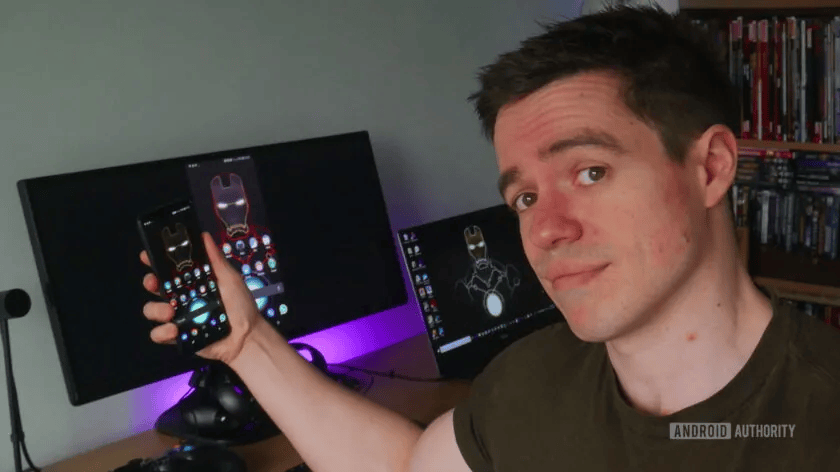
Scrcpy: A Free and Powerful Way to Control Android From a PC
Scrcpy, short for “screen copy,” takes Android-to-PC control a step further than simpler mirroring tools such as Vysor. One of its biggest advantages is that it doesn’t require you to install a companion application on your Android phone.
Because Scrcpy is open-source, its code is publicly available for inspection and development. This can be an advantage for users who are particularly concerned about privacy and security. However, getting everything configured can require a little more technical knowledge than some of the simpler alternatives.
How Scrcpy Connects to Android
You can connect your smartphone to your computer using either:
- 🔌 USB
- 📶 Wi-Fi
Before using Scrcpy, you’ll generally need to enable Developer Options and USB Debugging on your Android device.
What Can Scrcpy Do?
Scrcpy offers an impressive collection of features, including:
- 🖥️ Android screen mirroring
- 🖱️ Mouse and keyboard control
- 🔔 Notification management
- 📋 Automatic copy-and-paste synchronization
- 📷 Camera mirroring
- 🔒 Control your phone even when the screen is turned off
- 🔊 Forward audio from your Android device to your PC
- 📱 Control Android applications directly from your computer
This makes Scrcpy particularly useful for developers, IT technicians, power users, and anyone who wants detailed control over an Android device from a computer.
Is Scrcpy Free?
Yes. One of Scrcpy’s biggest advantages is that it is completely free and open source. Unlike services that lock advanced features behind monthly subscriptions, Scrcpy doesn’t require you to pay for premium functionality.
It is available for Windows, macOS, and Linux, and the software can be obtained from its official GitHub repository.
The Main Drawback
The biggest challenge is the initial setup. Enabling Developer Options, configuring USB Debugging, and connecting the device over Wi-Fi can be more complicated for beginners.
However, once configured, Scrcpy offers an impressive combination of performance, flexibility, privacy, and zero subscription costs.
Best for: Users who want a powerful, free, open-source Android screen-mirroring and control solution and don’t mind spending a little time setting it up.
DeskDock
Price: Free or $5.49
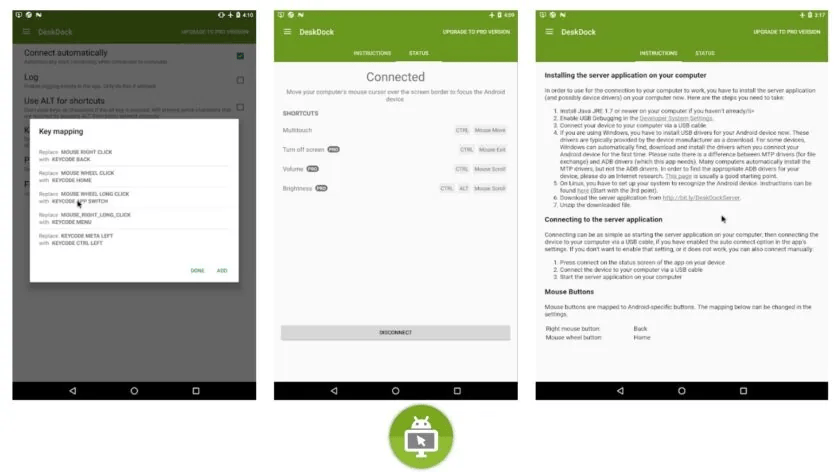
DeskDock: Use Your PC Mouse and Keyboard With Android
Unlike screen-mirroring tools such as Scrcpy and Vysor, DeskDock takes a much simpler approach. Instead of displaying your entire Android screen on your computer, it allows you to use your computer’s mouse directly on your Android device.
This can be particularly useful for Android developers and testers who need to interact with applications quickly. Rather than constantly switching between a computer mouse and a touchscreen, you can move the mouse between your PC and Android device and use it to test different functions.
What Does DeskDock Offer?
The free version provides basic mouse-sharing functionality, allowing your computer’s mouse to interact with your Android smartphone.
A paid version adds additional capabilities, including:
- 🖱️ Mouse sharing and control
- ⌨️ Keyboard sharing
- 📋 Clipboard synchronization
- 🔄 Easier interaction between your PC and Android device
The additional keyboard and clipboard features can be particularly helpful when you’re frequently transferring text or working between your computer and phone.
Is DeskDock Worth Using?
If you don’t need full screen mirroring and simply want to use your PC’s mouse and keyboard with an Android phone, DeskDock offers a lightweight alternative to more feature-heavy applications.
It’s especially useful for developers, testers, and power users, while casual users may find a solution such as Phone Link or Scrcpy more suitable.
Best for: Android developers and users who want to control their phone using their computer’s mouse and keyboard without necessarily mirroring the entire screen.
Samsung Flow
Price: Free

Samsung Flow: A Convenient Choice for Galaxy Users
If you’re using a Samsung Galaxy smartphone and want to connect it to your PC, Samsung Flow is one of the most convenient options available. The platform is designed to bring compatible Samsung devices together, making it easier to share information and stay connected across your devices.
Samsung Flow can help you synchronize notifications, share content, and move information between compatible Samsung products. For example, you can transfer or access messages from your Galaxy phone on a compatible Galaxy tablet, while notifications can also appear on your Windows laptop.
One of the biggest advantages is that you don’t need to own a Samsung-branded computer to use Samsung Flow. A compatible Windows PC can connect with your Galaxy smartphone and take advantage of the supported features.
What Can Samsung Flow Do?
Depending on your compatible devices, Samsung Flow can help you:
- 🔔 Synchronize smartphone notifications
- 💬 Access and manage messages across supported devices
- 📁 Share files and content
- 🔐 Connect and authenticate compatible devices
- 📱 Link Samsung Galaxy smartphones with tablets and PCs
- 💻 Use compatible Windows computers without requiring a Samsung laptop
Who Is Samsung Flow Best For?
Samsung Flow is particularly useful for people who already own multiple Samsung Galaxy devices and want a more seamless experience between them.
If you have a Galaxy smartphone, Galaxy Tab, and Windows laptop, Flow can make it easier to keep your devices connected without repeatedly switching between them.
Best for: Samsung Galaxy users who want simple cross-device connectivity, notification synchronization, and file sharing between their smartphone, tablet, and Windows PC.
TeamViewer QuickSupport
Price: Full TeamViewer support from $50.90 per month

TeamViewer QuickSupport: A Powerful Option for Remote Android Support
TeamViewer QuickSupport is part of the broader TeamViewer remote-access platform and is particularly useful for businesses, IT professionals, and technical support teams.
The QuickSupport app allows you to provide remote assistance to an Android smartphone from a computer. Once the required mobile app and desktop software are installed and the appropriate permissions are granted, a technician can connect to a supported Android device and help troubleshoot problems remotely.
This can be especially valuable for businesses that need to assist employees or customers without requiring them to bring their devices to an IT department.
What Can TeamViewer QuickSupport Do?
Depending on the Android device and permissions available, TeamViewer can provide features such as:
- 🖥️ Remote screen viewing and control
- 🛠️ Remote technical support
- 📁 File transfer
- 🔧 Troubleshooting assistance
- 🌐 Remote access over the internet
- 💼 Business-oriented device management
Unlike simpler tools such as DeskDock or Vysor, TeamViewer is part of a much broader remote-support and business collaboration ecosystem.
Is TeamViewer Worth It?
TeamViewer can be more expensive than many of the other solutions discussed in this guide, particularly for commercial use. However, businesses get access to considerably more powerful remote-support capabilities in return.
For an individual who simply wants to mirror an Android phone on a PC, a free solution such as Scrcpy may be more appropriate. For an IT department supporting multiple employees or customers, however, TeamViewer can be a much more comprehensive option.
Best for: Businesses, IT support teams, technicians, and professionals who need reliable remote assistance and management of Android devices.
Final Thoughts
And that brings us to the end of our list of the best tools for controlling an Android phone from a PC. Whether you need screen mirroring, file sharing, notification management, remote assistance, or complete device control, there’s an option to suit different needs and budgets.
For simple everyday tasks, Microsoft Phone Link is a great starting point. If you want a powerful free and open-source solution, Scrcpy is an excellent choice. Samsung Galaxy users can consider Samsung Flow, while businesses and IT professionals may benefit more from TeamViewer QuickSupport.
If what you’re actually looking for is the opposite—controlling your PC directly from your Android phone—there are also several remote-desktop applications designed specifically for that purpose.
